PlateCooking tips9 min read
Keep your phone screen on while cooking: 5 simple fixes
Keep your phone screen on while cooking: a site's Cook Mode, a longer Auto-Lock, Siri timers, Lock Screen Live Activities or a recipe app, and each catch.
To keep your phone screen on while cooking, switch on a recipe site's Cook Mode, lengthen Auto-Lock for the meal, or use a recipe app whose cook mode keeps the screen awake. Better still, let Siri timers and Lock Screen Live Activities handle the waiting, so the screen doesn't need to stay on at all.
We make Plate, a recipe keeper for iPhone with a Cook Mode built for the stove, so we think a lot about floury fingers and dimming screens. This guide ranks five fixes by their trade-offs, then covers a kitchen setup that keeps your phone dry and clean.
Why does your phone screen keep turning off while you cook?
Your iPhone turns its screen off because of Auto-Lock, the setting that dims and then locks the display when you stop using it. Apple's iPhone User Guide, in Keep the iPhone display on longer, says the display stays on while you're looking at it, but it dims and eventually locks, for your security, when you look away for a while. At the stove you're watching the pan, not the phone, so the screen goes dark halfway through a step. Low Power Mode makes it worse: Apple says it sets Auto-Lock to 30 seconds. There are five ways around it. A recipe website's Cook Mode toggle keeps that one page awake. A longer Auto-Lock keeps everything awake, at a cost to battery and security. Siri timers mean you never touch the screen to time a step. Lock Screen Live Activities show a countdown while the phone stays locked. And a recipe app's cook mode keeps the screen on only while you cook.
| Fix | Screen stays on? | The catch |
|---|---|---|
| 1. Website Cook Mode toggle | Yes, while that page is open | Ends when you switch apps or tabs |
| 2. Longer Auto-Lock | Yes, for everything | More power use, and Low Power Mode cuts it to 30 seconds |
| 3. Siri timers | Not needed | You still read the recipe yourself |
| 4. Lock Screen Live Activities | Not needed | Shows the timer, not the full step |
| 5. Recipe app Cook Mode | Yes, only while cooking | The recipe has to be in the app first |
How do you keep the screen on for a recipe website?
Look for a toggle labeled Cook Mode or Keep screen awake near the recipe card, and switch it on before you start. Behind it is usually the browser's Screen Wake Lock API, which MDN's documentation describes as a way "to prevent devices from dimming or locking the screen when an application needs to keep running." Following a recipe is one of the use cases MDN lists. It has limits:
- It only works while the page is visible. MDN says a lock is released automatically when the page becomes inactive. Open the Clock app or another tab, and Auto-Lock is back in charge.
- It can be refused. MDN notes a request may be rejected because of system settings such as power save mode or a low battery.
Tired of scrolling past a story with wet fingers? Here's why recipe blogs are so long.
How do you change Auto-Lock on iPhone, and what is the catch?
A longer Auto-Lock keeps the whole phone awake, not just one page:
- Open the Settings app.
- Tap Display & Brightness, then tap Auto-Lock.
- Choose a longer time for the meal.
Apple's own note: "Delaying or preventing Auto-Lock may increase power consumption." Auto-Lock is also a security setting, so a long timeout leaves a phone on the counter open for longer. Set it back after dinner.
The bigger catch is Low Power Mode. Apple's Low Power Mode guide lists "Sets Auto-Lock to 30 seconds" among its changes, and the battery icon turns yellow while it's on. With Adaptive Power turned on, it can switch on by itself below 20% battery. It's an easy pattern to miss: fixes 1 and 2 both depend on the screen staying awake, and both can fail on the same evening, when your battery is low. If the screen keeps dimming after you changed the setting, check the battery icon first.
How can Siri and the Lock Screen do the work instead?
The neatest fix is not needing the screen at all. Often you reach for the phone only to start or check a timer. Hand that job to Siri and the Lock Screen, and Auto-Lock stops mattering.
Use Siri as a kitchen timer. Apple's guide to setting timers in Clock gives the phrase: "Set the timer for 3 minutes." The timer keeps going even if you open another app or your iPhone goes to sleep, and you can run several at once. When one ends, you can stop or repeat it from the Lock Screen.
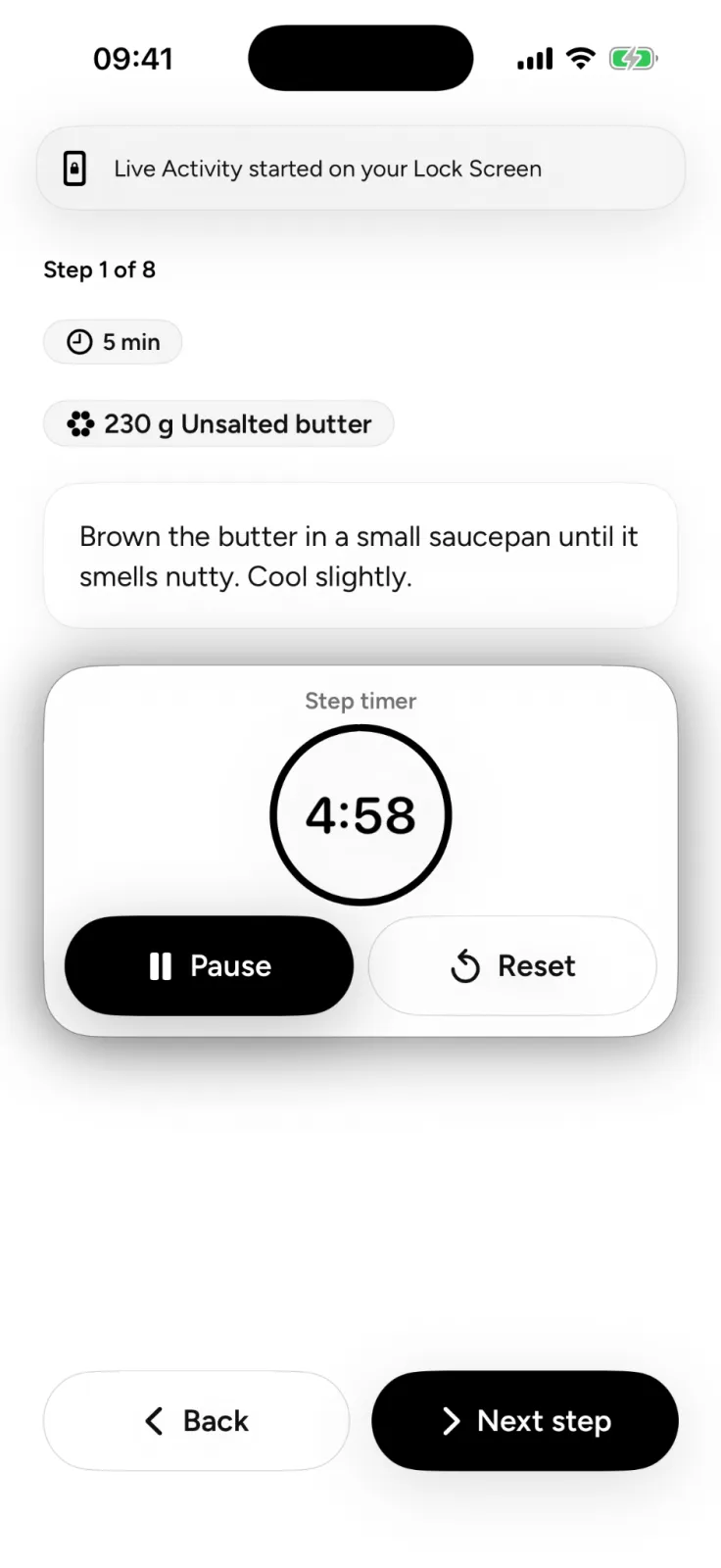
Watch the countdown on the Lock Screen. Apple calls the app updates you follow on your Lock Screen Live Activities, with examples such as directions from Maps and food delivery order updates. On supported models they also appear in the Dynamic Island while you're using the phone. When a recipe app supports them, its timer counts down on the Lock Screen while the phone stays locked. The per-app switch is under Settings > Apps.
What should a good cook mode do?
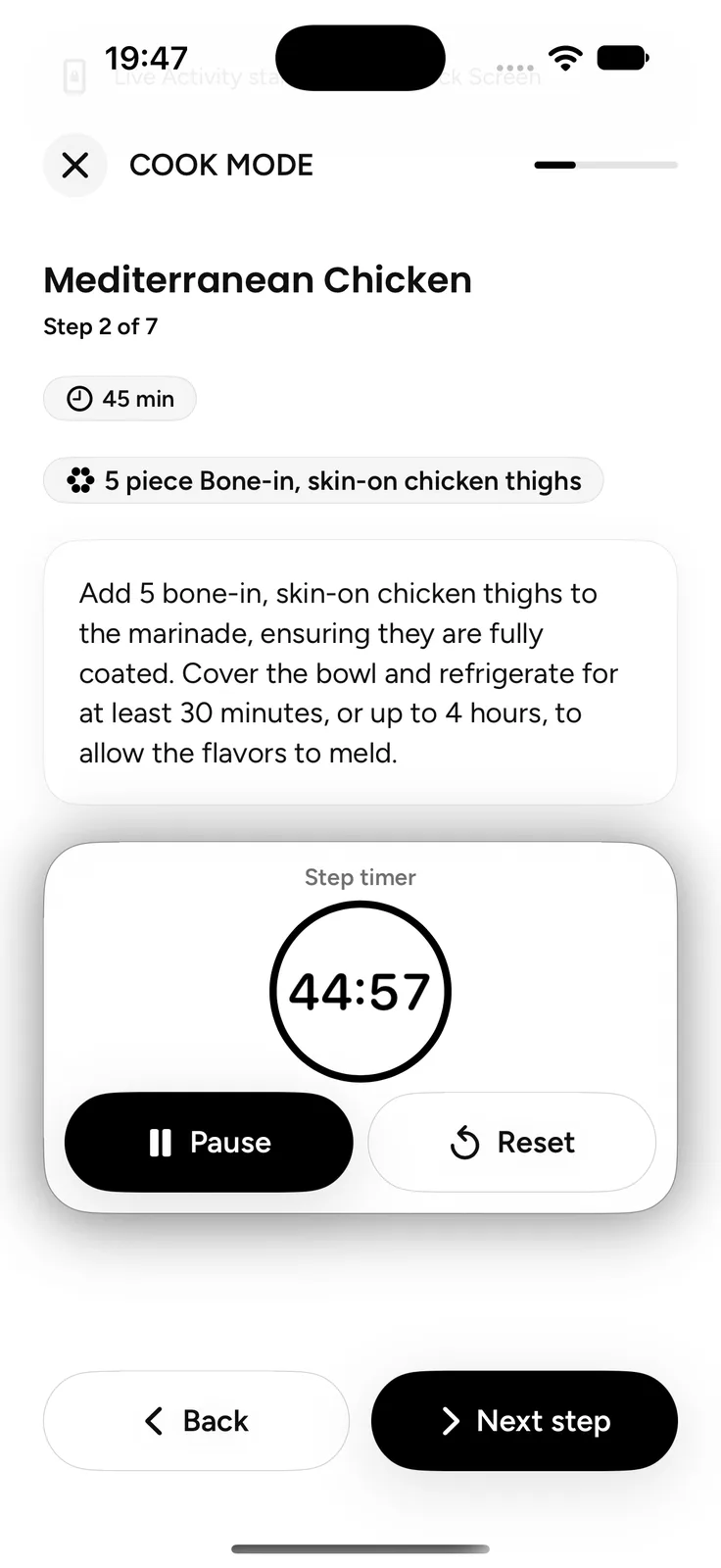
A good cook mode keeps the screen awake only while you're cooking, then lets the phone lock normally. It should also make every glance count. Look for these in a recipe app that keeps the screen on:
- Screen awake only while it's open, with normal Auto-Lock back when you leave.
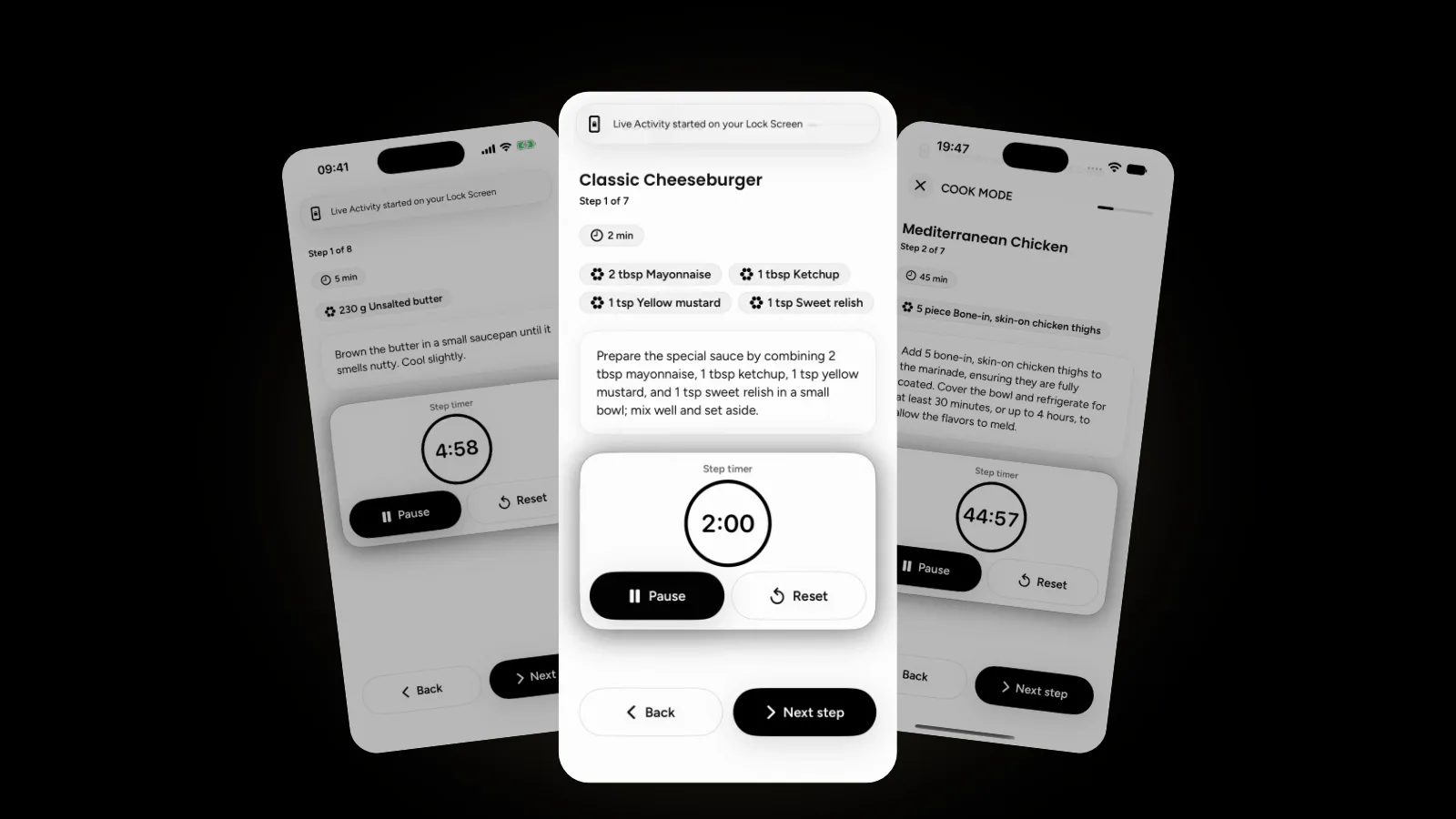
- One step per screen in type you can read from arm's length.
- Big Back and Next buttons you can hit with a knuckle.
- Timers on the steps that need them, ideally mirrored on the Lock Screen.
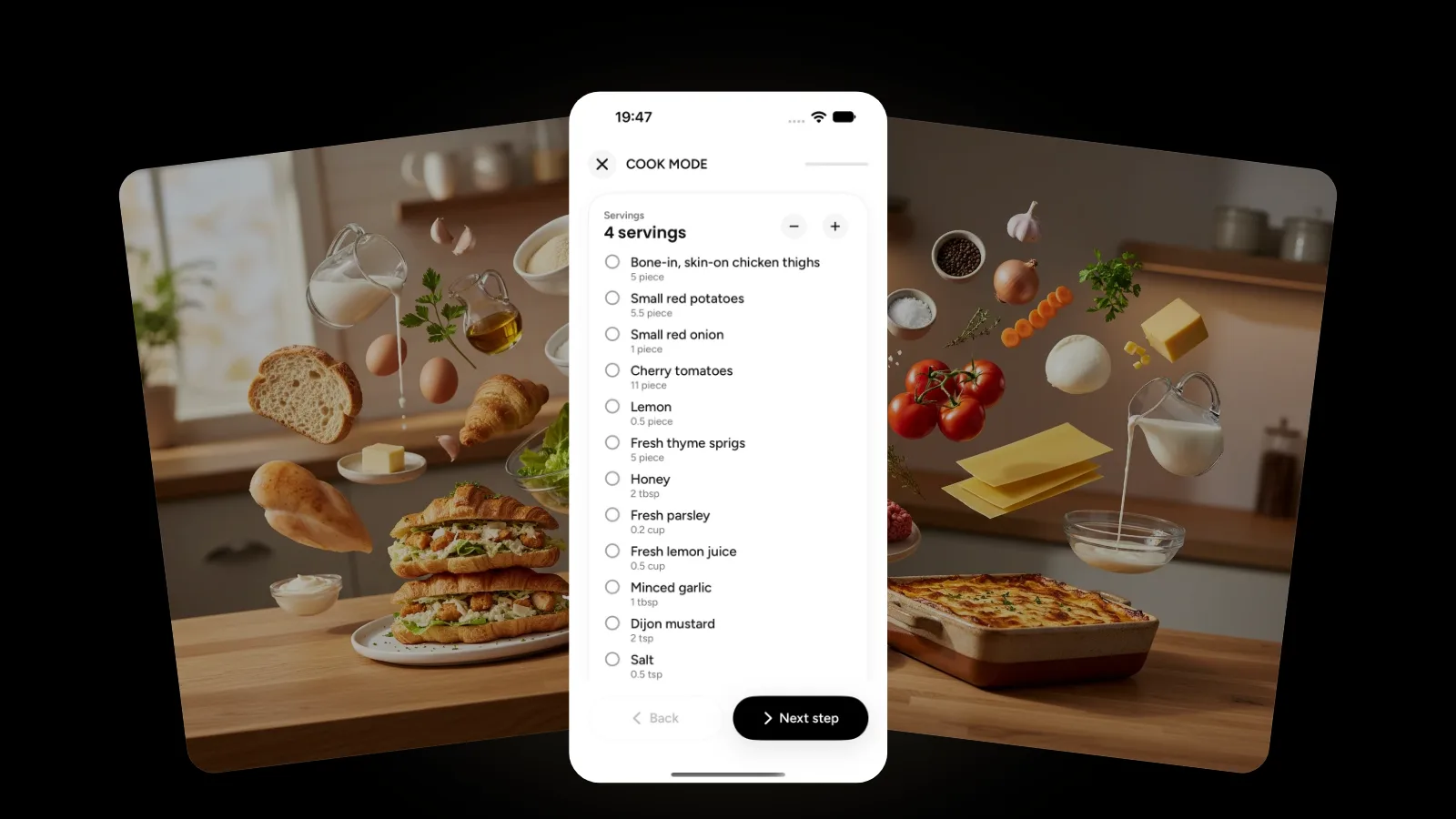
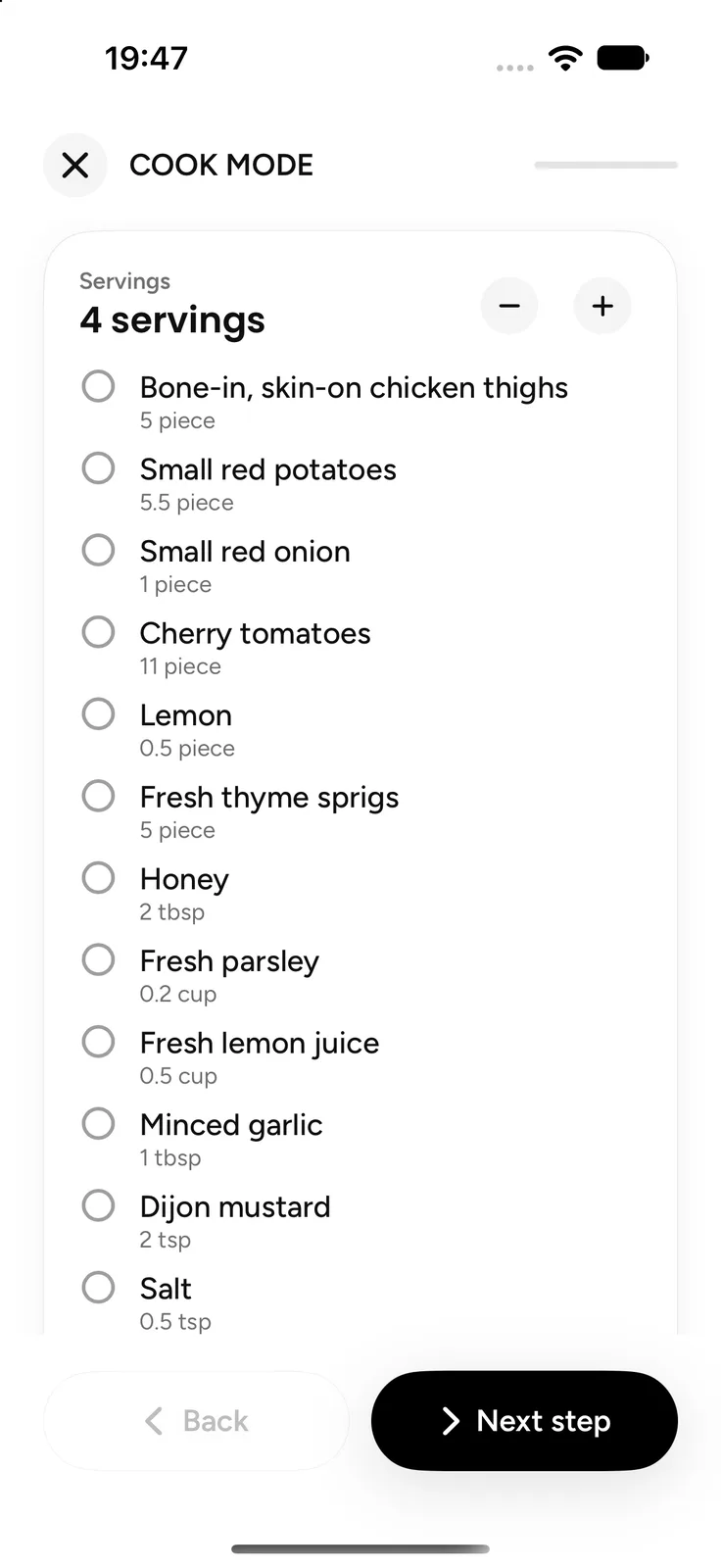
- A tickable ingredient checklist, so you know what's already in the bowl.
- Adjustable servings. Our guide to scaling a recipe up or down covers what a multiplier can't fix.
A cook mode works best with a written recipe, which is why our video to recipe guide turns cooking videos into steps first. And measuring everything before the heat goes on, known as mise en place, means fewer trips back to the screen.
How do you protect your phone from splashes and messy hands?
Put the phone at eye level, away from the steam and the sink, and keep raw-food hands off it. A few habits do most of the work when you follow a recipe on your phone:
- Eye level, not flat on the counter. A stand or shelf behind your prep area keeps it readable and out of the splash zone. It also spares you the head-down habit our tech neck guide covers.
- Away from the stove and the sink. Apple's guidance on splash, water and dust resistance says to avoid using an iPhone in a steam room or in extremely humid conditions, and that resistance may decrease with normal wear.
- Clean it when food lands on it. The same page says to clean your iPhone immediately if it touches acidic foods or liquids such as oil. If it gets wet, wipe it with a soft, lint-free cloth.
- A zip-top bag for messy jobs. Slide the phone into a clear bag before kneading dough, and test a tap through the plastic.
- Tap with a knuckle while your fingertips are covered in dough.
- Wash before you touch. The CDC's steps to prevent food poisoning say to "always wash hands after handling uncooked meat, chicken and other poultry, seafood, flour, or eggs," for at least 20 seconds. Flour is on that list too.
How does Plate's Cook Mode work?
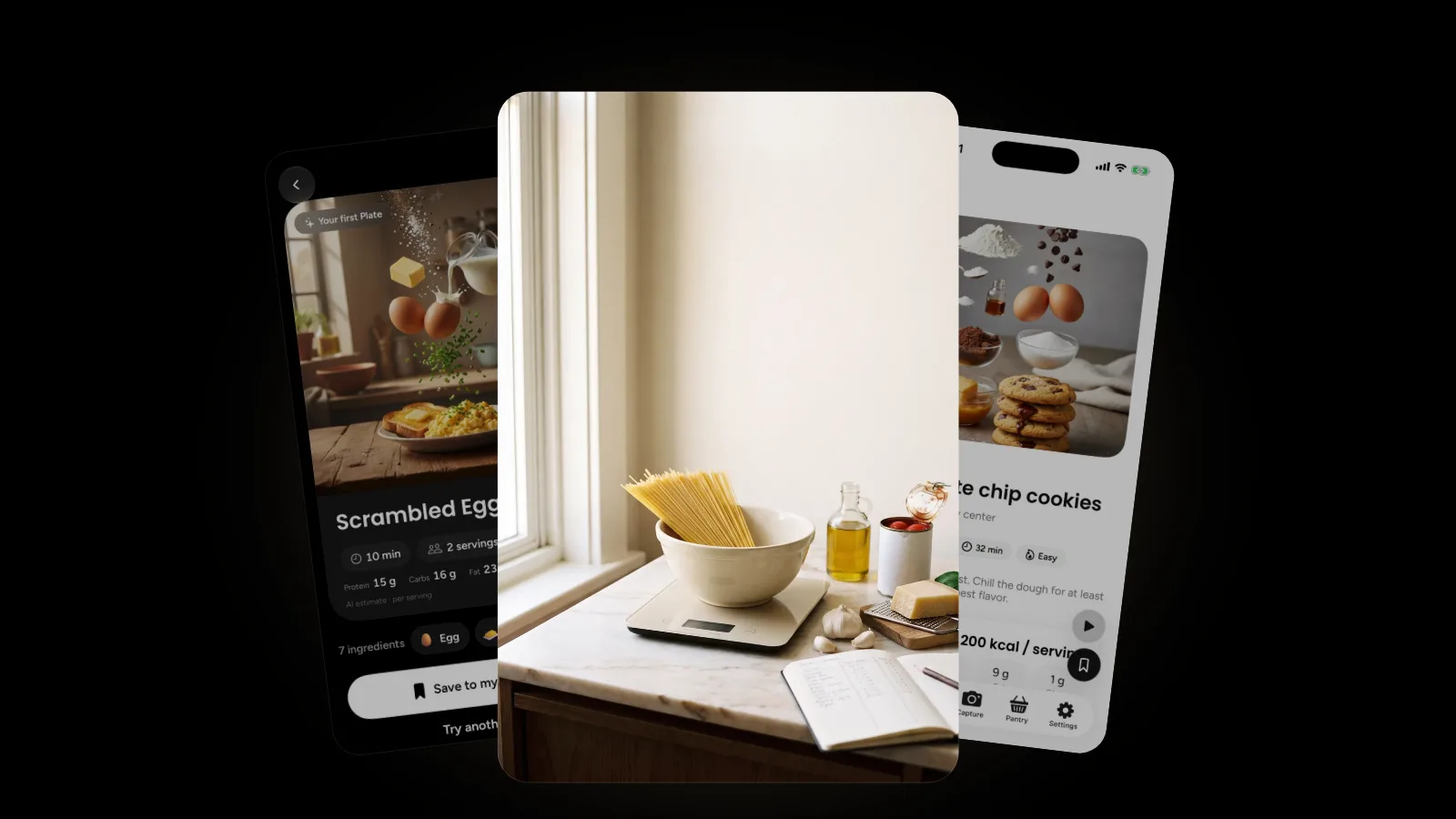
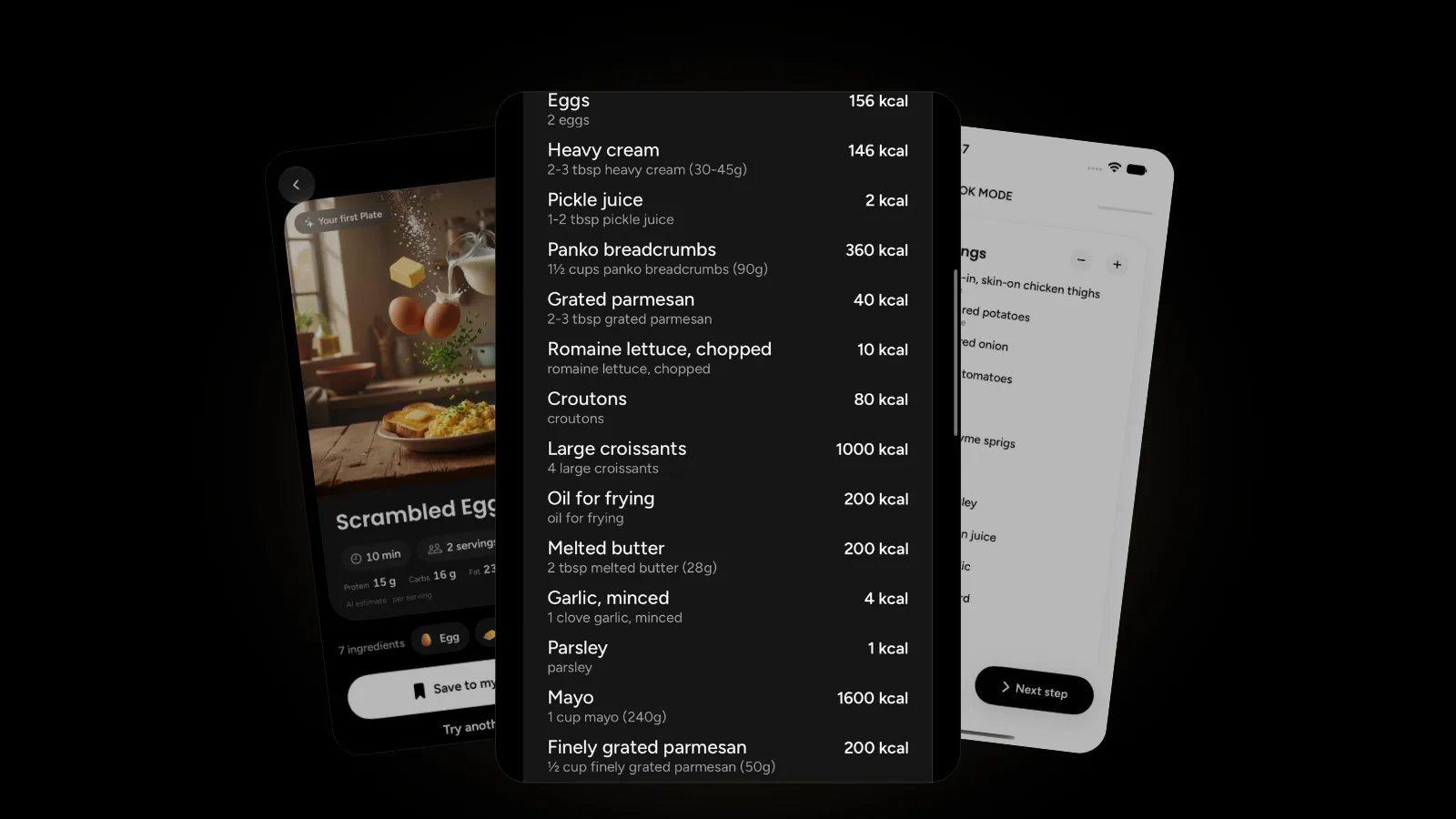
In Plate, Cook Mode opens on a servings card above an ingredient checklist you tick as you gather things. Change the servings and every amount recalculates. Then it walks you through one step at a time with built-in timers, and the timer runs as a Live Activity on your Lock Screen. The screen stays on while Cook Mode is open, and normal Auto-Lock returns when you leave.
Siri helps you find the recipe first. Say "Ask Plate what I can cook" to match recipes to your pantry, "Search my Plate cookbook" or "Open a recipe in Plate," and your recipes also appear in Spotlight. For timing a step by voice, use the Clock timers above. If your fridge is the starting point, see our guide to cooking from your pantry. More guides are in the Plate category.
FAQ
How do I stop my iPhone screen from turning off while cooking?
Open Settings, tap Display & Brightness, then Auto-Lock, and choose a longer time. Apple warns this may increase power consumption, and Low Power Mode sets Auto-Lock to 30 seconds anyway. A recipe app's cook mode is tidier, because the screen goes back to normal when you leave it.
Why does my iPhone lock after 30 seconds when I set a longer Auto-Lock?
Low Power Mode is probably on. Apple lists "Sets Auto-Lock to 30 seconds" among its changes, and the battery icon turns yellow while it's active. Turn it off in Settings > Battery, under Power Mode on iPhone 15 and later, or charge to 80%, when Apple says it turns off by itself.
Do website cook mode toggles work on iPhone?
Usually, if your software is current. They rely on the Screen Wake Lock API, which MDN says has worked across the latest devices and browser versions since March 2025. The lock lasts only while the page is visible, and MDN notes it can be refused in power save mode or when the battery is low.
Can I use Siri as a kitchen timer?
Yes. Apple's example phrase is "Set the timer for 3 minutes." The timer keeps going if your iPhone goes to sleep or you open another app, and you can run several timers at once. When one ends, you can stop or repeat it straight from the Lock Screen.
Get started
Tonight, try the low-touch setup: phone at eye level, a Siri timer for each long step and a knuckle for Next. If you'd like a cook mode that handles the screen for you, Plate is free to start on the App Store, and the Plate page shows what else it can do.